
Affiliate Disclosure: This post contains affiliate links. If you buy through them, we earn a small commission at no extra cost to you. We only recommend products we would genuinely suggest to a friend.
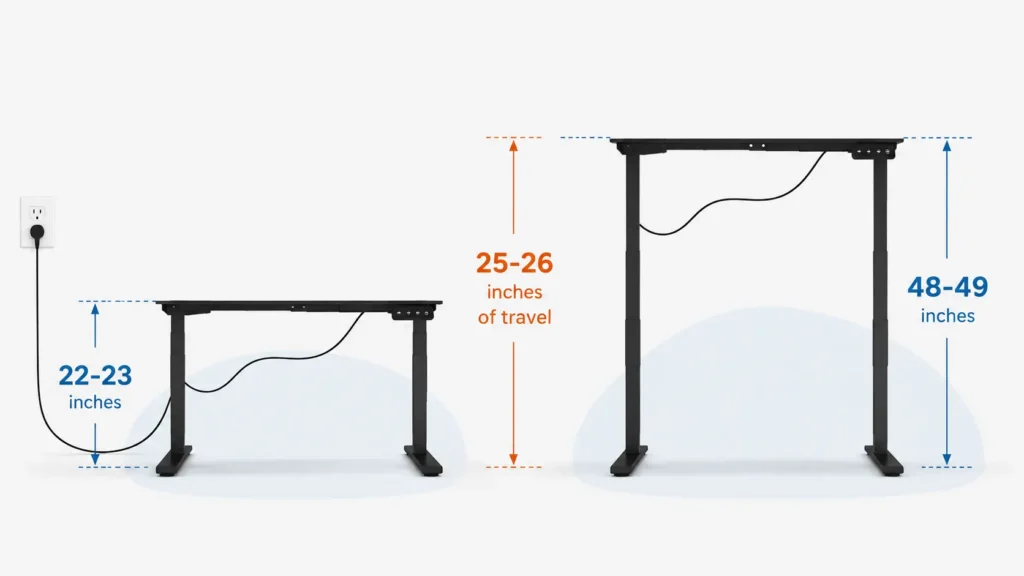
The right cable management for a standing desk comes down to one number most buyers never check: how far your desk travels from its lowest setting to its highest one. Most home standing desks move about 25 to 26 inches through their full height range. If your cable management doesn’t have enough slack built in for that full swing, cords pull taut at standing height, even if everything looked tidy at sitting height. Once you know your desk’s travel distance and how many cords you’re routing, choosing between a tray, a sleeve, or a magnetic channel gets a lot easier.
Key Takeaways
- Most standing desks travel about 25 to 26 inches from lowest to highest setting, and your cable management needs enough slack to cover that full range.
- A frame-mounted tray, like FlexiSpot’s CMP502, is the safest pick if you change desk height more than once a day.
- A cable sleeve works well if your desk mostly stays at one height, since there’s no mounting involved.
- VIVO’s magnetic cable channel is a no-drill option, but only works on desks with a flat steel leg, not inverted leg shapes.
- Match the product to how many cords you’re routing: a thin bundle needs less support than a power strip plus multiple devices.
Who this is for: This guide is for you if you have a height-adjustable desk that you actually raise and lower during the day. You want to stop guessing which cable management product will hold up at your desk’s highest setting instead of one that looks neat while it’s parked at sitting height.
The Question Most Cable Management Guides Skip
Most articles about cable management for standing desks just list products by price or looks. They skip the one question that actually decides whether a product will work on a height-adjustable desk: how much vertical distance does the cord need to cover between its lowest point and its highest point. A desk that sits at 25 inches and rises to 50 inches needs roughly 25 inches of usable slack somewhere in the cable run, whether that slack lives inside a tray, inside a sleeve, or in a loose loop behind the frame. Skip this step, and even a good-looking cable tray will yank a charger cable loose the first time someone stands up to work.
Step 1: Find Your Desk’s Height Travel
Check your desk’s official spec sheet for its lowest and highest height, then subtract one from the other. FlexiSpot’s E7 frame moves from 22.8 inches to 48.4 inches, a travel distance of 25.6 inches, according to FlexiSpot’s own E7 product page. Uplift’s V3 frame has a BIFMA-compliant range of 22.6 inches to 48.7 inches, a travel distance of 26.1 inches, per Uplift’s listing for the frame’s wire management tray. If you don’t know your own frame’s exact numbers, 25 to 26 inches is a safe planning figure for most home standing desks.
| Frame | Lowest Height | Highest Height | Total Travel | Source |
|---|---|---|---|---|
| FlexiSpot E7 | 22.8 in | 48.4 in | 25.6 in | flexispot.com |
| Uplift V3 | 22.6 in | 48.7 in | 26.1 in | upliftdesk.com |
Step 2: Count Your Cords and Their Bundle Size
The second variable is simpler: how many cords are you actually routing, and how thick is the bundle once they’re gathered together. A laptop charger and one monitor cable make a thin bundle. Add a dock, two monitors, a desk lamp, and a power strip, and the bundle needs real support, not just a wrap. This matters because the products in this guide are built for different bundle sizes, and matching the wrong one to a thick bundle means it either won’t close properly or won’t hold up over time.
Cable Management for Standing Desks That Move Daily: Frame-Mounted Trays
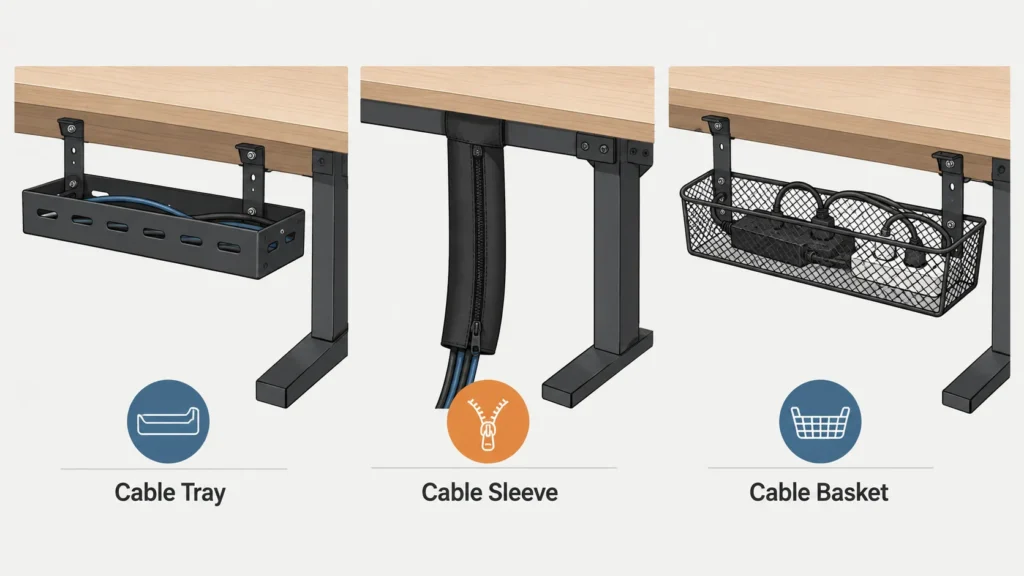
A tray that mounts directly to the desk frame’s crossbar rises and falls with the whole desk assembly, so the cord only needs slack between the tray and the wall outlet or a floor-mounted power strip, not between the desk and the tray itself. This makes trays the safest choice for anyone who actually changes height more than once a day.
FlexiSpot’s CMP502 Cable Management Tray is a steel tray measuring 19.7 by 4.7 inches that mounts with six screws directly into the desk frame, according to FlexiSpot’s product page for the CMP502. (Affiliate link) It uses an open ventilation design, so cords don’t overheat while tucked inside it.
For a lighter-duty option, FlexiSpot’s Cable Management Mesh (CMP027) is a screw-mounted fabric tray rated for up to 6.6 pounds, per FlexiSpot’s CMP027 product listing, better suited to a couple of thin cables than a full power strip.
Uplift’s Desk For a heavier-duty option built for larger cord bundles, Uplift’s FlexMount Cable Manager holds up to 10 pounds of wires and adapters, mounts to the frame with two screws using pre-drilled holes on most Uplift desktops, and offers four vertical and five horizontal mounting positions to work around monitor arms or modesty panels, according to Uplift’s official FlexMount product page. It replaced Uplift’s older Wire Management Tray, which the company has since discontinued.
If you’re not sure your desk frame’s crossbar even has room to fit a mounted tray, that’s worth checking before you order one. We cover exact crossbar clearance by brand in our guide to whether a cable tray fits your standing desk.
| Product | Material | Dimensions | Mount Type | Capacity |
|---|---|---|---|---|
| FlexiSpot CMP502 | Steel | 19.7 x 4.7 in | 6 screws into frame | Not specified by manufacturer |
| FlexiSpot CMP027 Mesh | Fabric mesh | Varies by desk width | Screw-mounted | 6.6 lbs |
| VIVO Cable Mgmt Channel | Alloy steel | 13.8 x 2 in | Magnetic (no drilling) | Not specified (light-duty cords) |
FlexiSpot Steel Cable Management Tray (CMP502)
This tray mounts directly to the desk frame, so it moves with the desk on every height change instead of leaving cords to strain at the top of the range. The open, ventilated design keeps a power strip and a couple of adapters from overheating while they sit out of sight.
Best for: Desks that get raised and lowered daily, with a power strip and multiple cords to route.
(affiliate link)
If Your Desk Mostly Stays Put: Cable Sleeves
A cable sleeve is a wrap-around neoprene sock that zips shut around a bundle of cords. It doesn’t mount to the desk at all, so there’s no installation, but that also means there’s no built-in slack management. It works well when your desk sits at one height most of the time, with only occasional adjustments, because you can leave a loose loop by hand rather than relying on a mounted tray.
JOTO’s neoprene cable sleeves run 19 to 20 inches long and reach 1.2 inches in diameter once zipped, with each sleeve holding roughly 8 to 10 cables, according to JOTO’s product listing on Amazon (affiliate link). Two sleeves can be zipped together end to end for a longer run or extra capacity.
Uplift also lists a Zipped Cable Sleeve on its own wire management accessories page, sized to match Uplift desk cord bundles specifically.
JOTO Cable Management Sleeve (4-Pack, 19-20 Inch)
A sleeve is the fastest way to clean up a desk that doesn’t move much, since there’s nothing to screw in or measure. Leave a deliberate loop of slack when you wrap it, so the bundle isn’t pulled tight at your desk’s highest setting.
Best for: Desks raised only occasionally, with 3 to 8 cords in the bundle and no interest in drilling into the frame.
(affiliate link)
The Middle Ground: Magnetic Cable Channels
A magnetic cable channel mounts underneath the desktop and holds cords along its length using magnets instead of screws, so there’s no drilling at all. Uplift’s Magnetic Cable Channel is listed on the company’s wire management accessories page as a no-drill option that runs beneath the desktop surface. Because it mounts to the moving desk assembly the same way a tray does, it handles daily height changes the same way a frame-mounted tray does, just without needing screws.
VIVO Magnetic Cable Channel
A magnetic cable channel attaches directly to your desk leg using strong magnetic strips, no drilling required. VIVO’s 14-inch Cable Management Channel (DESK-AC01-1MB) is made from alloy steel, measures 13.8 by 2 inches, and mounts anywhere along the flat side of a steel desk leg, according to VIVO’s product listing. Because it attaches to the leg itself, it moves with the desk on every height change the same way a frame-mounted tray does, just without needing screws.
Best for:Anyone who wants a no-drill cable management option and has a steel desk leg to mount it on, regardless of desk brand.
(affiliate link)
Putting It Together: Match the Product to Your Numbers
If you’ve measured roughly 25 to 26 inches of height travel and you’re routing a power strip plus several cords, a frame-mounted tray is worth the six screws. If your desk barely moves and you’re managing two or three cords, a sleeve costs less and takes minutes to install. If you own an Uplift desk and want a clean look without drilling, the magnetic channel splits the difference. Whichever you pick, measure the slack it needs at your desk’s highest setting, not its lowest one, since that’s the setting that actually reveals a problem.
If you’re also dealing with a crowded under-desk area, for example fitting a CPU holder alongside a cable tray and a power strip, it’s worth checking clearance for all three together. We walk through that in our guide to CPU holder compatibility by desk frame brand.
Still not sure which option fits your exact desk and cord count? Reach out through our contact form and tell us your frame model and how many cords you’re routing. We’ll help you figure it out.
FAQ
Does cable management affect how a standing desk raises and lowers?
How much cord slack do I actually need?
Can I install a cable tray without drilling into my desk frame?
How many cables can one cable sleeve realistically hold?
Will a cable tray fit any standing desk frame?
Will the magnetic cable channel work on any standing desk?
What’s the real difference between a cable tray and a heavier-duty cable basket like the FlexMount?
Every measurement and spec in this guide comes from our own research. If you notice something that doesn’t match, whether it’s a wrong number or a calculation mistake on our end, tell us through the comments or our contact form. We’ll fix it right away.
Related Guides
- Will a Cable Tray Fit Your Standing Desk?
- CPU Holder for Standing Desk: Will It Fit Your Frame? (Brand-by-Brand Guide)
- Will a Keyboard Tray Fit Your Standing Desk? (Read Before You Drill)
- Standing Desk Drawers: Will It Fit Your Frame? (Fit Checked)

I got interested in home office setups and noticed most buying guides online tell you if a product is ‘good,’ but never tell you if it will actually fit your specific desk. Does It Fit My Team exists to close that gap, with real measurements, verified sources, and straight answers.